> ## Documentation Index
> Fetch the complete documentation index at: https://docs.plannotator.ai/llms.txt
> Use this file to discover all available pages before exploring further.
# Review Pull Request Artifacts Beside the Code
> Plannotator gathers screenshots, GIFs, videos, HTML, and Markdown from GitHub pull requests and GitLab merge requests into one artifact gallery beside the code diff.
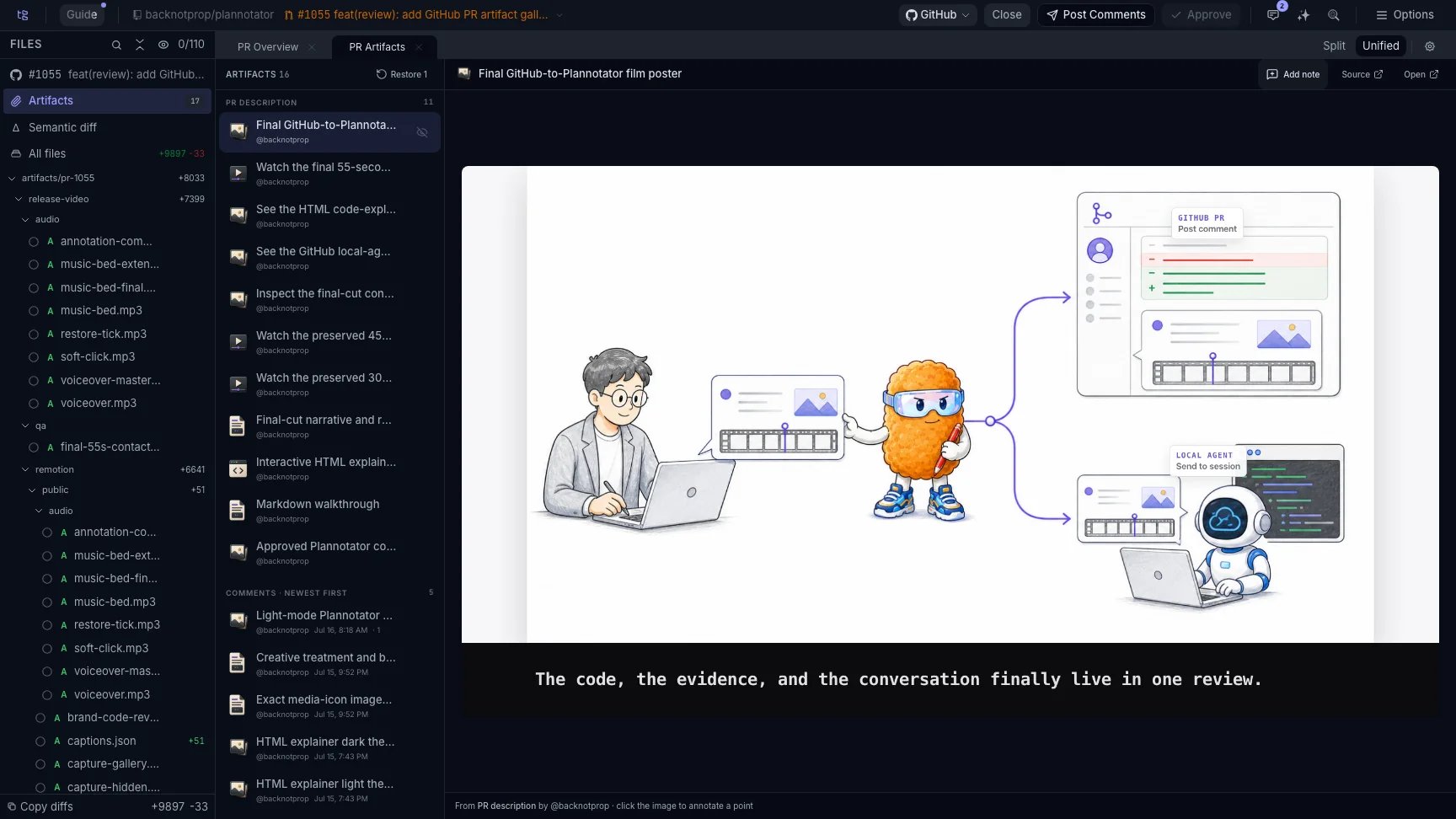
Plannotator now gathers supported screenshots, GIFs, videos, HTML files, and Markdown documents from a hosted GitHub pull request or GitLab merge request into one **Artifacts** gallery beside the code diff.
*Last reviewed July 18, 2026. Maintained by the Plannotator project.*
The gallery preserves where each artifact appeared, who posted it, and when it entered the conversation. Reviewers can inspect the evidence without searching through the description, comments, review replies, and resolved threads.
 ## Pull request evidence gets scattered
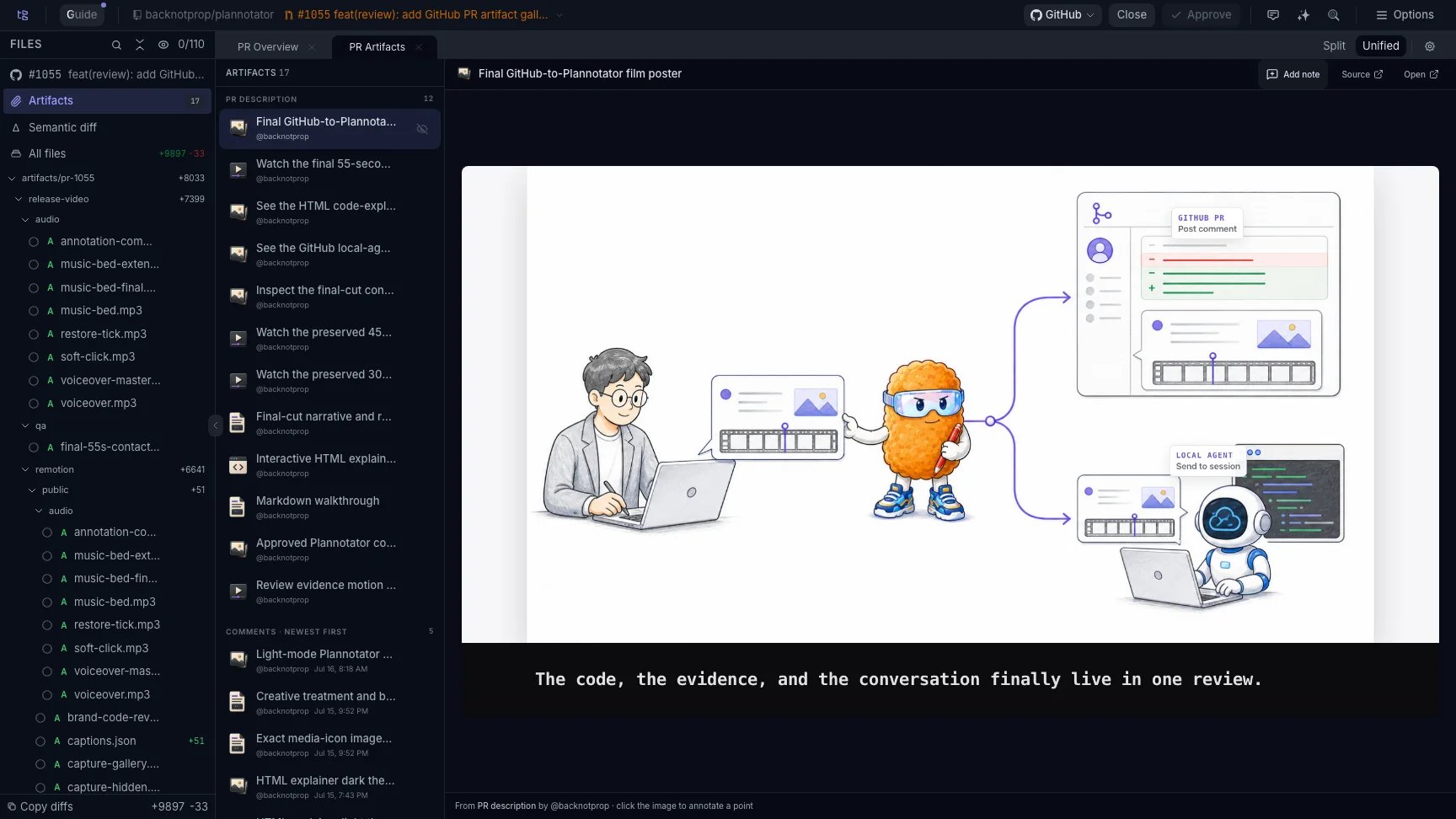
GitHub and GitLab already let people attach files to a pull request or merge request. A developer might put screenshots in the description, add a recording after another push, and share an HTML explainer in a review reply. An agent might contribute a Markdown walkthrough or another validation image later.
The files remain in the conversation, but the reviewer has to find them before evaluating them. Long discussions make that harder, especially when some evidence sits inside resolved threads or several people add artifacts at different times.
Plannotator reads the hosted review conversation and builds a focused gallery from the supported attachments it finds. It does not move the original files or erase their context. Each gallery item links back to the description, comment, review, or thread where it appeared.
## Review each medium with the right anchor
A useful comment should point to the part of the evidence that caused it. Plannotator changes the annotation control to match the artifact.
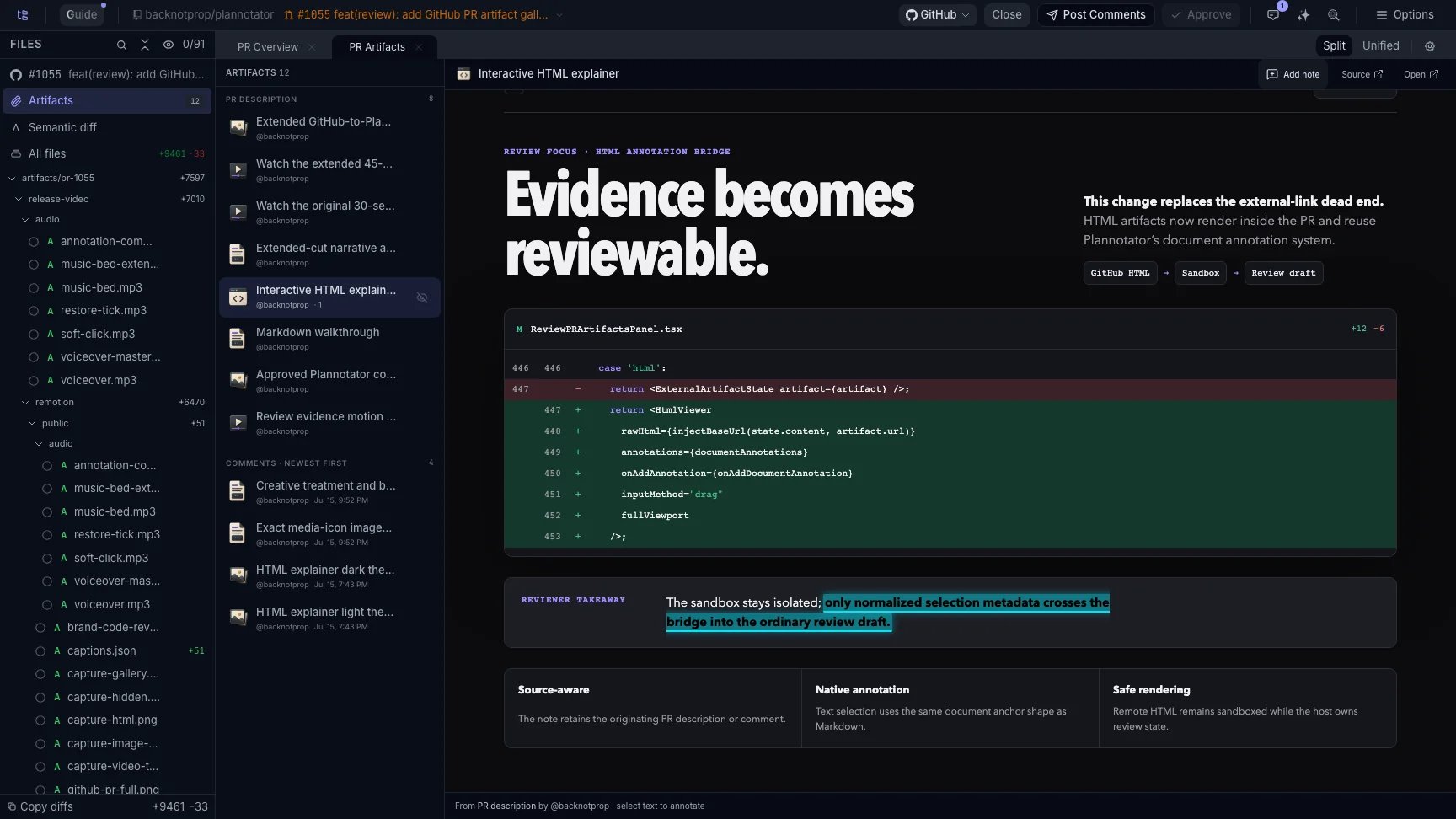
### Select text in HTML and Markdown
HTML explainers render inside Plannotator's restricted viewer. Reviewers can select the exact sentence or rendered section they want to discuss. Markdown documents use the same text-selection workflow.
## Pull request evidence gets scattered
GitHub and GitLab already let people attach files to a pull request or merge request. A developer might put screenshots in the description, add a recording after another push, and share an HTML explainer in a review reply. An agent might contribute a Markdown walkthrough or another validation image later.
The files remain in the conversation, but the reviewer has to find them before evaluating them. Long discussions make that harder, especially when some evidence sits inside resolved threads or several people add artifacts at different times.
Plannotator reads the hosted review conversation and builds a focused gallery from the supported attachments it finds. It does not move the original files or erase their context. Each gallery item links back to the description, comment, review, or thread where it appeared.
## Review each medium with the right anchor
A useful comment should point to the part of the evidence that caused it. Plannotator changes the annotation control to match the artifact.
### Select text in HTML and Markdown
HTML explainers render inside Plannotator's restricted viewer. Reviewers can select the exact sentence or rendered section they want to discuss. Markdown documents use the same text-selection workflow.
 Agent-produced HTML can contain scripts, frames, and network requests. Plannotator treats remote HTML as untrusted content and renders it in a sandbox rather than giving it the authority of the review application. See [when AI coding agents should produce HTML instead of Markdown](/learn/code-context/ai-agent-html-vs-markdown) for the format and security tradeoffs.
### Pin a comment to an image or GIF
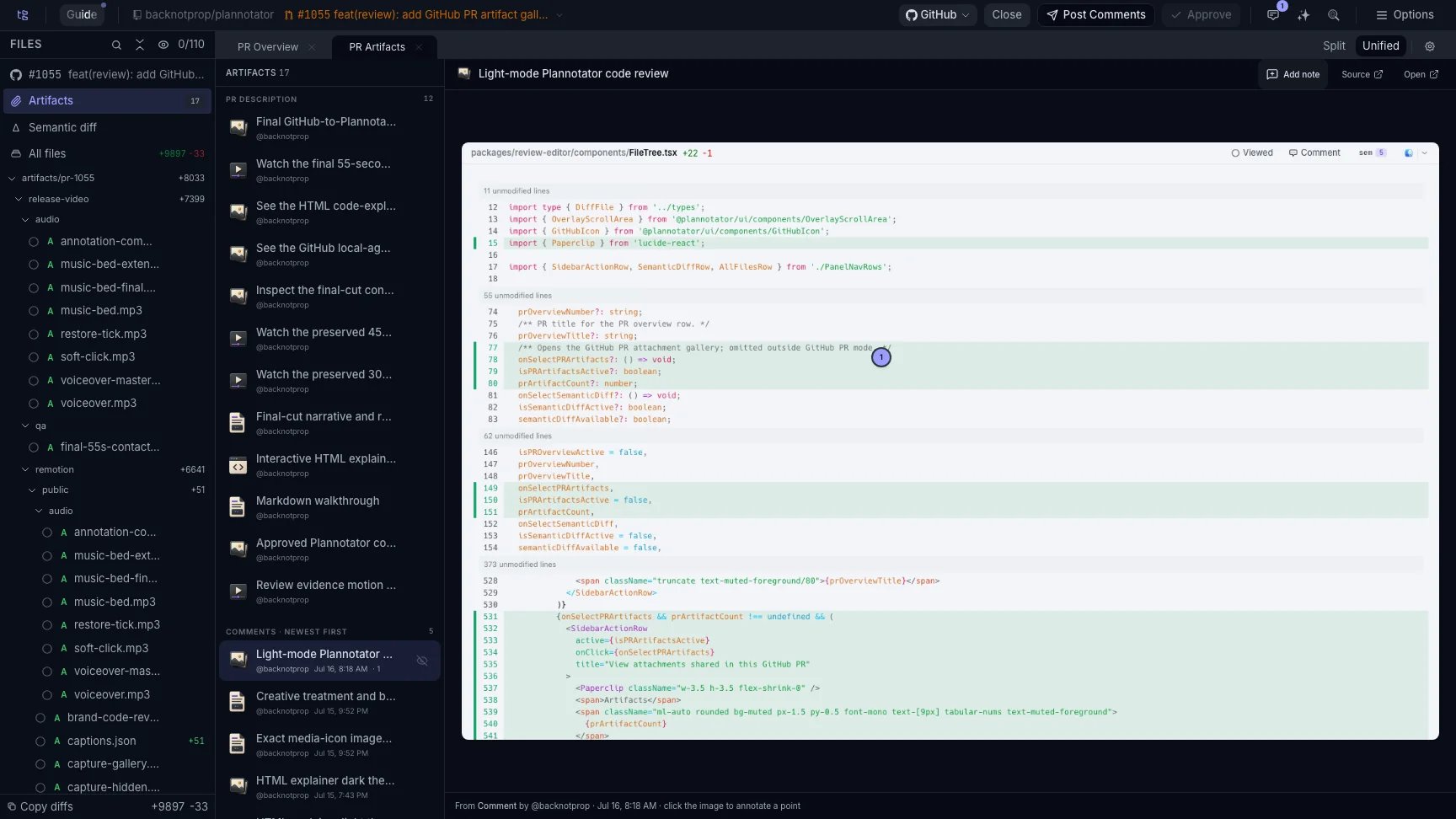
Click the relevant point on a screenshot or GIF, then leave the note. The review keeps the point with the comment, so another person does not have to infer which control, pixel, or visual state the reviewer meant.
Agent-produced HTML can contain scripts, frames, and network requests. Plannotator treats remote HTML as untrusted content and renders it in a sandbox rather than giving it the authority of the review application. See [when AI coding agents should produce HTML instead of Markdown](/learn/code-context/ai-agent-html-vs-markdown) for the format and security tradeoffs.
### Pin a comment to an image or GIF
Click the relevant point on a screenshot or GIF, then leave the note. The review keeps the point with the comment, so another person does not have to infer which control, pixel, or visual state the reviewer meant.
 ### Comment at a video timestamp
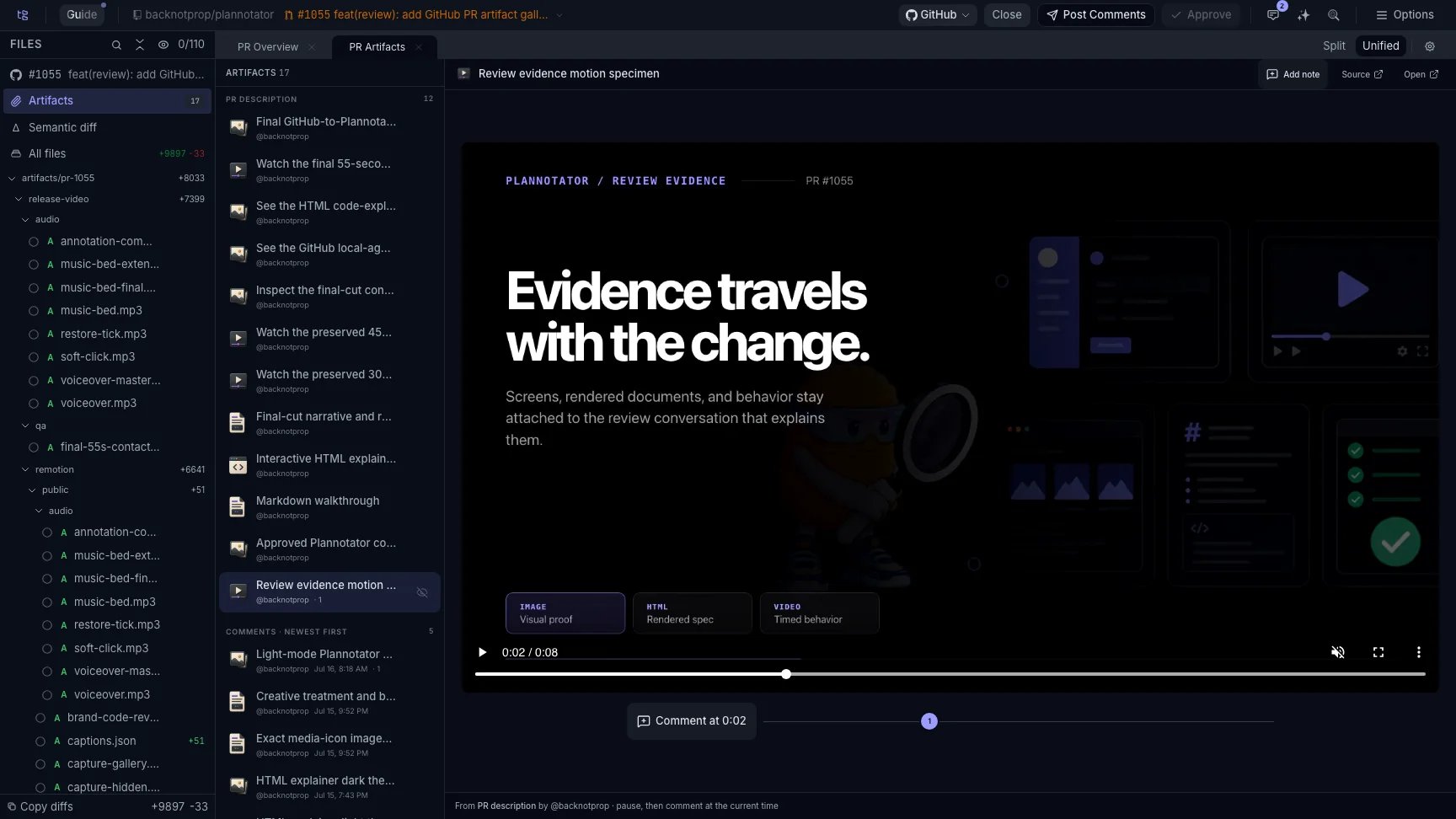
Pause a video at the relevant moment and comment on that timestamp. The note stays attached to the playback position, which makes feedback such as “the menu flickers here” reproducible.
### Comment at a video timestamp
Pause a video at the relevant moment and comment on that timestamp. The note stays attached to the playback position, which makes feedback such as “the menu flickers here” reproducible.
 Every supported artifact can also receive a note about the artifact as a whole.
## Keep the source and route the feedback
The gallery shows the artifact's author, conversation location, and original source link. That provenance helps reviewers distinguish evidence from the pull request author, another reviewer, or an agent participating in the conversation.
Artifact feedback joins the same review draft as code annotations. When the review is ready, Plannotator can post the feedback to the GitHub pull request or GitLab merge request with links to the original artifact and conversation. A local reviewer can instead send the structured feedback directly to the coding agent working on the change.
## Hide reviewed evidence without deleting it
Reviewers can hide an artifact after inspecting it and restore hidden artifacts later. Hiding only changes the local gallery view. It does not delete the attachment or alter the hosted review conversation.
Every supported artifact can also receive a note about the artifact as a whole.
## Keep the source and route the feedback
The gallery shows the artifact's author, conversation location, and original source link. That provenance helps reviewers distinguish evidence from the pull request author, another reviewer, or an agent participating in the conversation.
Artifact feedback joins the same review draft as code annotations. When the review is ready, Plannotator can post the feedback to the GitHub pull request or GitLab merge request with links to the original artifact and conversation. A local reviewer can instead send the structured feedback directly to the coding agent working on the change.
## Hide reviewed evidence without deleting it
Reviewers can hide an artifact after inspecting it and restore hidden artifacts later. Hiding only changes the local gallery view. It does not delete the attachment or alter the hosted review conversation.
 ## What the Artifact Gallery does not collect
The gallery has a deliberate boundary:
* It appears for hosted GitHub pull requests and GitLab merge requests because those reviews have a description and conversation to inspect.
* It does not appear for local diff reviews.
* It collects supported images, GIFs, videos, HTML, and Markdown referenced in the hosted conversation.
* It does not automatically import GitHub Actions workflow artifacts.
* It does not prove that an artifact still matches the current head revision. Reviewers should check when the evidence was produced after the code changes.
GitHub and GitLab remain the systems of record for the review conversation. Plannotator gives the code and its supporting evidence one surface for inspection and feedback.
Open a hosted pull request or merge request in Plannotator and review its supported artifacts beside the diff.
Learn how screenshots, recordings, HTML, documents, and validation output support a code review decision.
## What the Artifact Gallery does not collect
The gallery has a deliberate boundary:
* It appears for hosted GitHub pull requests and GitLab merge requests because those reviews have a description and conversation to inspect.
* It does not appear for local diff reviews.
* It collects supported images, GIFs, videos, HTML, and Markdown referenced in the hosted conversation.
* It does not automatically import GitHub Actions workflow artifacts.
* It does not prove that an artifact still matches the current head revision. Reviewers should check when the evidence was produced after the code changes.
GitHub and GitLab remain the systems of record for the review conversation. Plannotator gives the code and its supporting evidence one surface for inspection and feedback.
Open a hosted pull request or merge request in Plannotator and review its supported artifacts beside the diff.
Learn how screenshots, recordings, HTML, documents, and validation output support a code review decision.